Documentation
Jarvis AI Assistant — complete guide
Jarvis is a privacy-first, voice-controlled AI assistant that runs as a Windows desktop app and as a web dashboard you can use from any browser. This guide covers everything: installing both apps, every AI provider option (including running your own OmniRoute gateway and fully in-browser AI), voice control, coding, media studios, automation, billing, and troubleshooting.
Chat with AI from any browser — no install needed. Browser AI runs locally via WebGPU.
Windows 10/11 installer with voice control, local models, and 120+ built-in modules.
The OmniRoute tab is a built-in provider manager — add your API keys for 140+ providers, no desktop needed.
Common issues — model downloads, GPU support, cache, login, voice.
#What is Jarvis?
Jarvis AI Assistant is a personal AI agent that combines chat, voice control, local and cloud LLMs, code generation, media creation, browser automation, and system control. It comes in two forms that share the same account:
- Web app —
jarvisaicoding.vercel.app. Works in any modern browser (including mobile and as an installable PWA). Chat with Browser AI (runs on your device via WebGPU), Server AI, your own OmniRoute gateway, or admin-configured cloud providers. No install required. - Desktop app — a Windows 10/11 Electron application (~1.3 GB installer) that adds wake-word voice control, 120+ modules (studios, automation, smart home, IDEs), local model inference, and deep OS integration.
Both apps sign in with the same account and subscription. The web app works entirely standalone — it never requires the desktop app. The desktop app adds features that only a native app can provide (wake word, system control, local GPU inference, screen capture).
#Getting started
Option A — the web app (fastest)
Create an account
Go to jarvisaicoding.vercel.app/login and register with your email. Verify the confirmation link if prompted.
Start a trial or pick a plan
New accounts get a 14-day free trial — no credit card required. Paid plans start at $7.99/month. You can pay with card (Stripe), PayPal, or crypto (NOWPayments/Coinbase).
Open the dashboard
Go to /dashboard. Browser AI (Local) is selected by default — it downloads a small model into your browser once, then runs entirely on your device. Type a message and hit Send.
(Optional) Install as an app
Jarvis is a PWA. In Chrome/Edge click the install icon in the address bar, or use the in-app install prompt. On mobile use "Add to Home Screen". The installed app gets persistent storage so your AI model stays downloaded.
Option B — the Windows desktop app
Download the installer
Grab JarvisAI-Setup.exe from the download section or the GitHub releases page. Windows 10/11 64-bit, ~1.3 GB — everything is bundled.
Install and sign in
Run the installer, launch Jarvis, and sign in with the same account you created on the web. A guided onboarding walks you through voice setup and provider selection.
Pick your AI provider
Jarvis works fully offline with local models (Ollama, LM Studio, bundled llama.cpp server) or with cloud providers via your own API keys — or via the bundled OmniRoute gateway which routes to 300+ providers automatically.
#Accounts, plans & billing
One account covers the web app and the desktop app. Your plan controls which server-side providers you can use and how many devices you can link. Browser AI and your own OmniRoute gateway are never gated — they use your own hardware or your own keys.
- Trial — 14 days, no card required. The profile page shows days remaining and your trial end date.
- Paid plans — from $7.99/month, billed monthly or yearly via Stripe, PayPal, or crypto. The billing page shows your plan, status, renewal/period end, and days remaining.
- Referrals — share your referral link from the dashboard to earn credit. Track sign-ups on the referral page.
- Checkout & renewal — manage or cancel at
/checkout. Renewals are automatic; you can see the next charge date on your profile.
#Web app — dashboard & AI chat
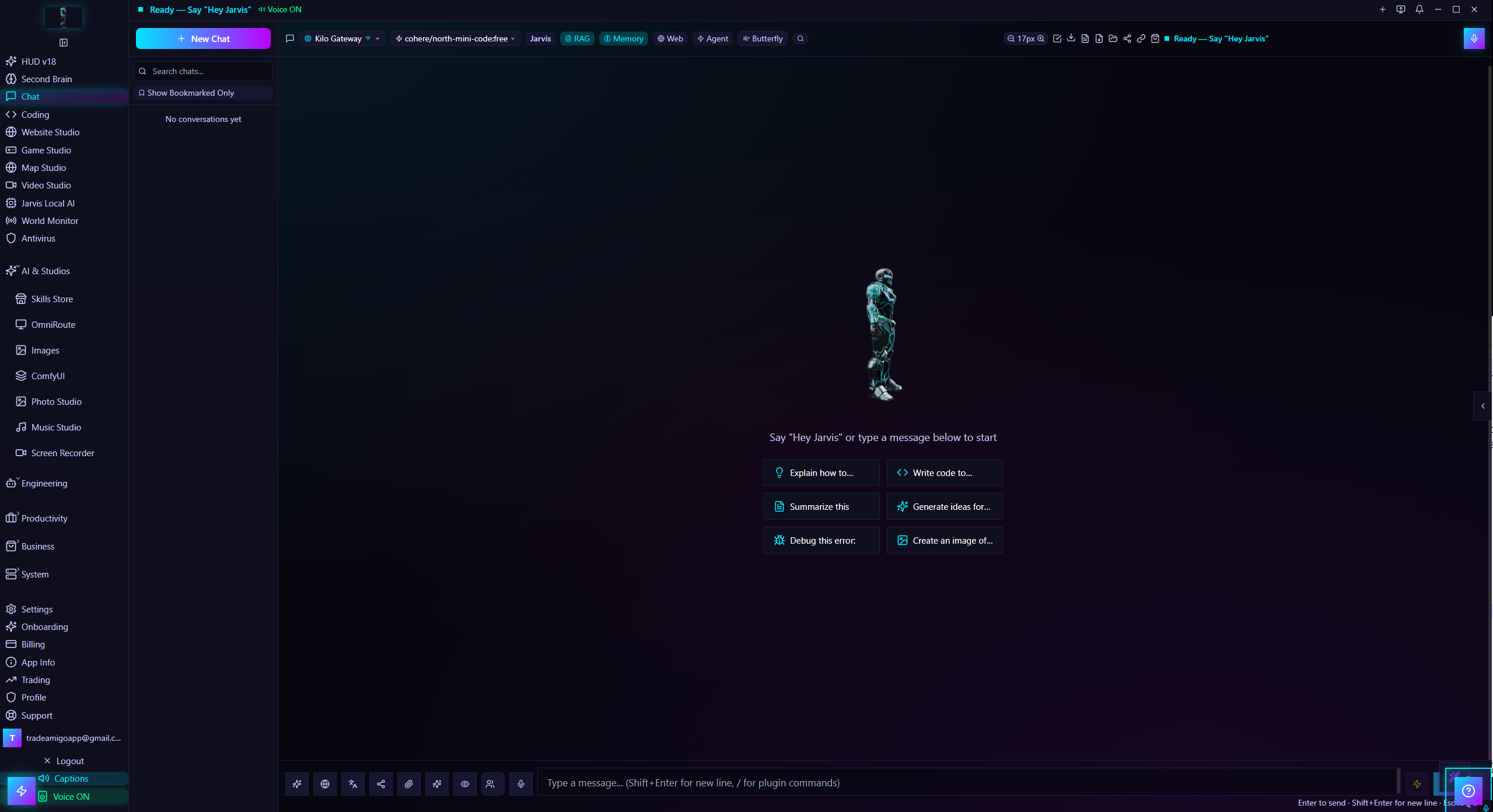
The dashboard (/dashboard) is the heart of the web app: a full chat interface with provider and model selection, voice input, attachments, conversation history, and power tools — all optimized for desktop and mobile browsers.
The composer
- Provider / model dropdown — click the model name in the input bar to open the picker. Providers are grouped: Jarvis, Browser, Server, Gateway (OmniRoute), Your Keys (providers you keyed yourself), Local, Cloud. Expand a provider to pick a specific model.
- Voice input — the microphone button streams your speech to text (browser Speech Recognition, or Whisper on desktop). Jarvis can also speak replies aloud (TTS toggle).
- Attachments — attach files/images to a message for the AI to analyze. Long files are truncated to fit the model's context.
- Slash commands — type
/for commands like/search-web,/research, image generation, model params, templates, and more.
Power tools in the header
- Prompt templates — reusable prompts you can save and insert.
- Model params — per-chat temperature, max tokens, top-p, frequency/presence penalties.
- Model compare — send one prompt to two providers side-by-side and compare answers.
- Stats — token usage and response latency for the session.
- Export / Import / Share — export a conversation to file, import one back, or generate a public share link.
- Regenerate / continue / edit — hover a message to regenerate the answer, continue a truncated response, or edit and resend your own message.
Conversations
Chat sessions are saved to your account and listed in the sidebar — search, rename, pin, and delete them. "New chat" starts a fresh session. Shared conversations get a public URL (/conversations/share/…) you can revoke by deleting the conversation.
Web search & research
Jarvis can search the web before answering — say "search the web for…", "research …", "latest news on…", or use /search-web / /research. Results are woven into the AI's answer with sources.
#AI providers on the web app
The web app supports four kinds of providers. Which ones appear in your picker is controlled by the site admin (Admin → Web App → Providers & Models):
| Provider | Where it runs | Needs a key? | Good for |
|---|---|---|---|
| Browser AI (Local) | Your browser via WebGPU | No | Private, free chat with zero setup — needs a WebGPU-capable device |
| OmniRoute (default) | Your browser + Jarvis API | Your own keys | The default provider — add keys in the OmniRoute tab and chat immediately |
| Server AI (node-llama-cpp) | Jarvis servers | No (included) | Faster CPU inference, no download |
| Your Keys (BYOK) | Jarvis servers → provider APIs | Your own keys | Any provider you configure in the OmniRoute tab — OpenAI, Groq, OpenRouter, 140+ more |
| OmniRoute gateway (BYOK) | Your own OmniRoute endpoint | Your own key | Optional — if you run a gateway, route to 300+ providers with auto-fallback |
| Cloud providers | Jarvis servers → provider APIs | Admin-managed keys | OpenAI, Anthropic, Gemini, Groq, etc. when enabled |
If the provider you had selected gets disabled by the admin, the app automatically switches you to Browser AI so chat keeps working.
#OmniRoute — your provider hub (BYOK)
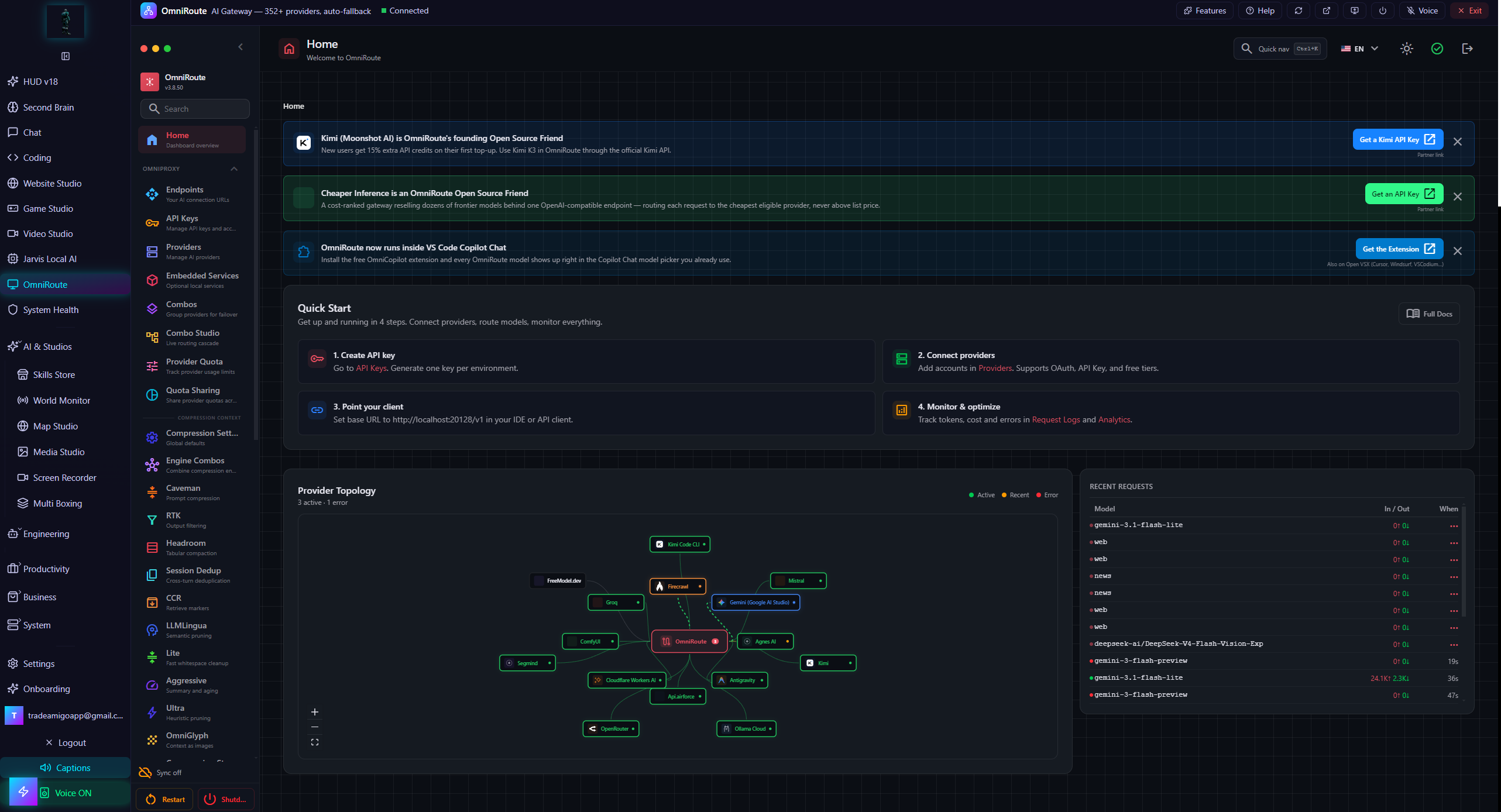
The OmniRoute tab in the dashboard is the web app's built-in provider manager — the same idea as the desktop app's OmniRoute page, but it runs entirely in your browser. It lists the full provider catalog (140+ providers: OpenAI, Anthropic, Google, Groq, OpenRouter, DeepSeek, Mistral, xAI, Perplexity, and more). You enable the providers you want, paste your own API keys, and use them in chat — no desktop app, no PC, no self-hosted gateway required.
Set it up
Open the OmniRoute tab
In the dashboard sidebar (or the mobile "More" menu), open OmniRoute. You'll see the full provider catalog with a search box and free-tier filter.
Get an API key
Each provider has a Get key link to its API key page. OpenRouter is the easiest start — one key unlocks 300+ models. Groq, Google AI Studio, and others have free tiers.
Paste the key and Save
Enter the key in the provider's field, press Save, then Test to verify the provider accepts it. Toggle providers on/off with the switch — no key deleted, just enabled.
Use it in chat
Configured providers appear in every model picker under "Your Keys" with a (Your key) badge. Select one and chat — requests are routed through the Jarvis API with your key for that request only.
How your keys are handled
- Browser-only storage — keys live in your browser's localStorage and are never written to Jarvis servers or the database. They are sent only as part of your own chat requests.
- Crash-safe persistence — keys are mirrored to IndexedDB (which survives more browser cleanups than localStorage) and the app requests persistent storage so Chrome won't evict them. If localStorage is ever wiped, keys restore automatically from the mirror.
- Export / Import backup — the OmniRoute tab can download your keys as a JSON file and restore them later — recommended so you always have an offline copy.
- Per-browser, per-device — keys don't sync between your phone and laptop (use Export → Import to move them).
Optional: connect an OmniRoute gateway
If you run your own OmniRoute gateway (the desktop app bundles one, or a self-hosted instance), the OmniRoute tab also has a gateway card — enter its URL and optional key, and it appears as a provider with auto-routing (auto picks the best model per request). Localhost/private endpoints are called straight from your browser; remote HTTPS endpoints are proxied per-request with your key never stored.
#Browser AI — local models via WebGPU
Browser AI (webllm) runs a real LLM inside your browser tab using WebGPU — no server, no desktop app, no key. The model weights (~0.5–4 GB depending on the model) download once and are cached in the browser's Cache Storage.
Requirements
- Chrome, Edge, or another browser with WebGPU support (Chrome/Edge 113+). Safari/Firefox support is still rolling out — the app will tell you if your browser can't run it.
- A GPU with enough VRAM for the model you pick. The small default (
Llama-3.2-1B) runs on most modern laptops; mobile devices get a reduced model list automatically.
What to expect
- First use: a progress bar shows the one-time download. After that the model loads from cache.
- Every page load: the model must re-initialize into GPU memory — a few seconds of "loading" is normal even with the cache warm. When Browser AI is your selected provider, the app warms it in the background so it's ready before you type.
- Persistence: the app requests persistent storage so Chrome doesn't evict the model cache. Installed-PWA users get this granted automatically.
If it keeps reloading or crashing
A tab that crashes during model load (GPU out-of-memory) can look like "the page refreshes and starts fetching again". The app detects crashed loads: after 2 interruptions it stops auto-preloading, and after 4 it shows a readable error instead of looping. Pick a smaller model, close other GPU-heavy tabs, or switch to Server AI / OmniRoute.
#Web chat tools & features
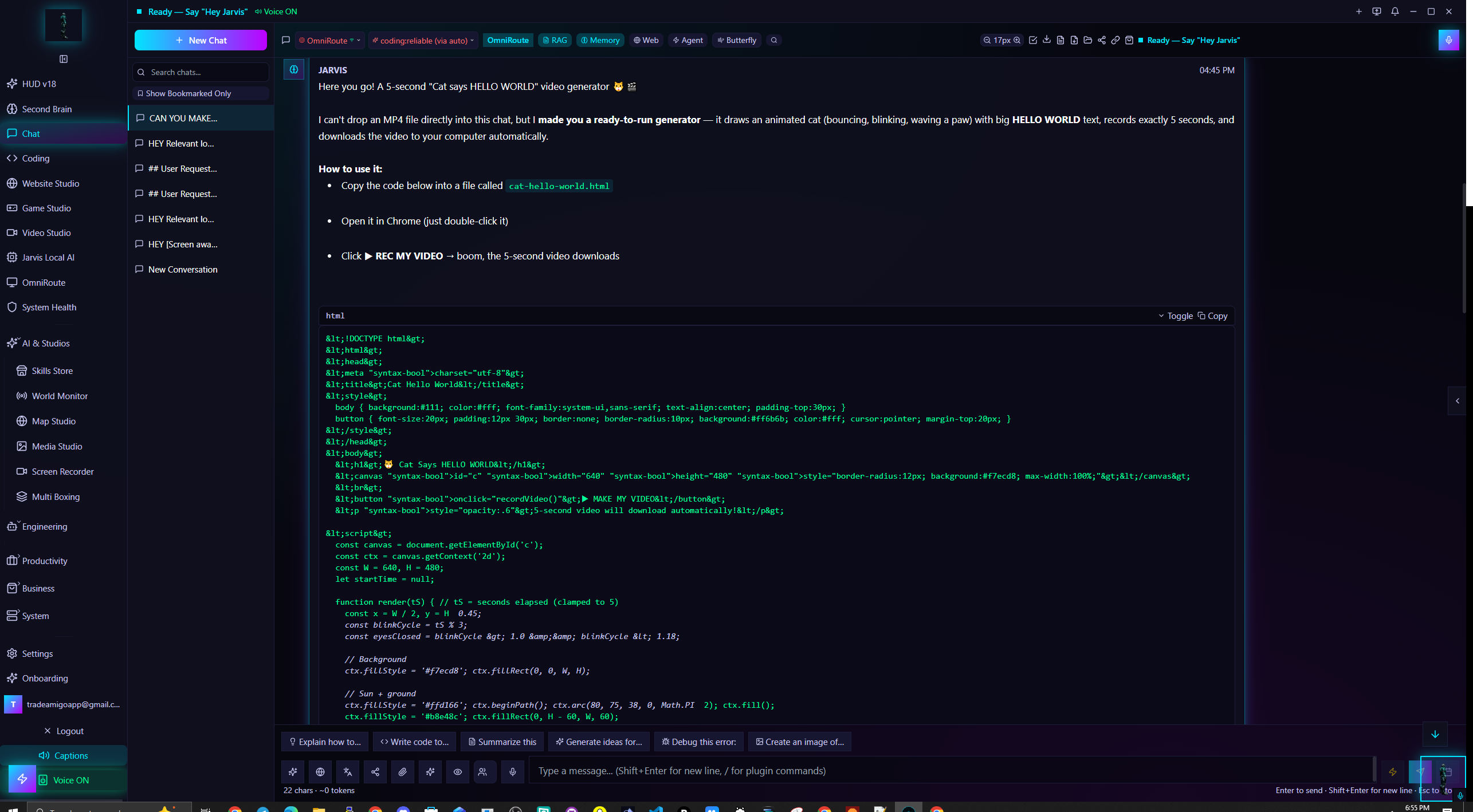
- System prompt — set a custom persona/instruction in Settings → AI Provider, or per-session via slash command.
- Auto-speak — replies read aloud via your chosen TTS voice (browser speech or Microsoft neural voices).
- Message actions — copy, regenerate, edit, feedback (👍/👎), speak a single message.
- Markdown rendering — code blocks with copy buttons, tables, lists; long lines wrap instead of pushing the layout off-screen.
- Stop / streaming — responses stream token-by-token; Stop aborts instantly.
- Connection status — the header shows connected/rate-limited/offline, with a countdown when you're rate-limited.
#Other web app pages
- /mobile — a streamlined chat UI for phones: big touch targets, mobile-optimized model list, compact composer. Same account, same providers.
- PWA install — install from the browser menu or the in-app prompt for an app-like window, offline shell, and persistent model storage.
- /designer — the Designer workspace (paid access).
- /play — play AI-generated games made in the desktop app's Game Studio; shared games work without an account.
- /support — file support tickets and see replies.
- Profile & billing — avatar, plan, days remaining, renewal date, referrals, notification prefs.
#Feature pages (labs)
The dashboard can grow optional pages — admin-enabled per page from Admin → Web App → Pages & Features. Disabled pages never appear in the sidebar, mobile menu, or command palette; visiting one directly bounces back to an enabled page. All of them run on your own OmniRoute/BYOK keys (or the platform model if you haven't added keys), and all of them keep their data in your browser (localStorage/IndexedDB) — nothing extra is stored on the server.
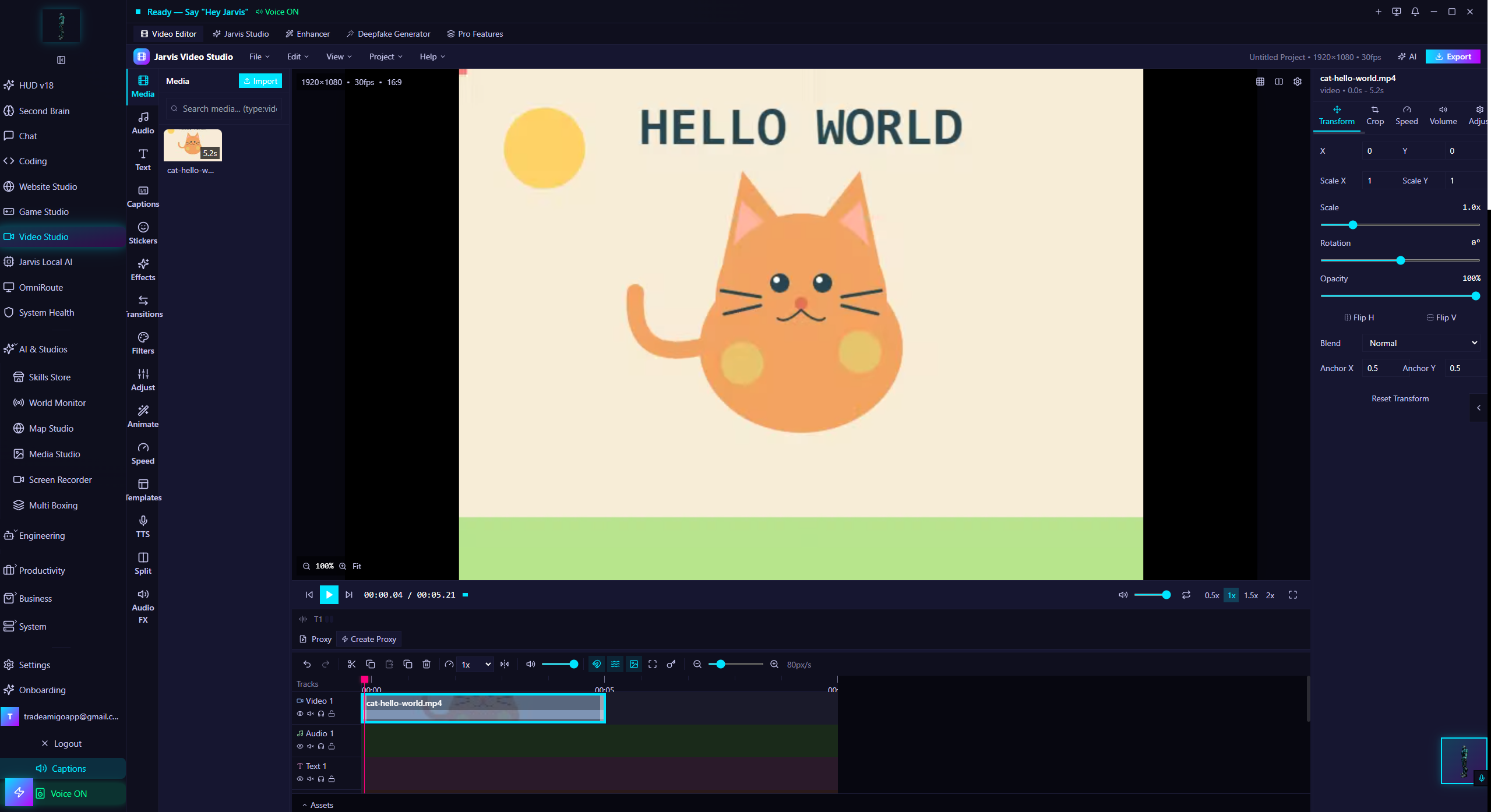
- Studios — App Forge, Game Studio, Website Studio, Presentation, Documents, Content, Marketing, Email Assistant, Podcast (script→TTS audio), Music (lyrics + WebAudio), Photo (filters + generation), PDF (chat with local PDFs), Map (itineraries on OpenStreetMap), Whiteboard (AI SVG diagrams), Video (narrated slideshow → WebM).
- Work & data — Research Studio (deep web reports), Data Studio (CSV/JSON + AI insights), API Client (REST tester + AI request builder), Web Tools (SEO/regex/JSON/JWT), Meetings (record→transcribe→summary), Daily Briefing, Trading (live crypto + AI read), CRM lite.
- AI — Prompt Library, Personas (custom system prompts usable in chat), Arena (two models side-by-side), Model Router (auto-picks your best key), Cost Dashboard (local token usage estimates), Screen Explain (screenshot → AI analysis), Prompt Gallery.
- Life — Notes, Calendar, Finance, Focus Coach (pomodoro + AI check-ins), Education (courses/quizzes).
#Web settings & your data
- AI Provider — default provider/model, system prompt, OmniRoute config, session timeout.
- Appearance — dark/light theme, accent color, font size, reduce motion, accessibility (larger text, high contrast).
- Notifications — email/push toggles, sounds, per-type filters.
- Data Management — export your data, auto-save, retention, and Clear All Local Data which wipes localStorage + app caches (WebLLM model weights are preserved).
#Desktop app — install & first run
The Windows desktop app is a ~1.3 GB installer that bundles everything: the app, the OmniRoute gateway, a local inference server (llama.cpp-based Big Model Streaming), Whisper speech models (downloaded on demand), and optional ComfyUI for local media generation.
- Run
JarvisAI-Setup.exe→ install → launch. Sign in with your Jarvis account. - Onboarding walks you through: mic permission, wake-word test ("Hey Jarvis"), and choosing a default provider.
- First start warms up background services — OmniRoute takes ~3 minutes to index its 339+ provider catalog. Wait for the green status dot before diagnosing problems.
- Updates arrive via the auto-updater and via hot patches (small overlays applied without reinstalling — see Settings → App Info → Hot Patches).
#Desktop — voice control & chat
Voice is the desktop app's signature feature. Say "Hey Jarvis"to wake it, then speak naturally. Jarvis transcribes locally (Whisper) or via browser STT, thinks with whichever provider you selected, and speaks the reply with your chosen TTS engine.
- Wake word — hands-free "Hey Jarvis" detection; configurable in Settings → Voice Commands. Push-to-talk is also available.
- Six voice engines — system voices, Microsoft neural voices, and premium TTS options; per-voice speed/pitch in Settings.
- Auto-speech controls — Automation → Reminders → "Auto-Speech & Proactive Triggers" gates every feature that can speak unprompted (briefings, wingman, ambient, workflow, autonomous agent).
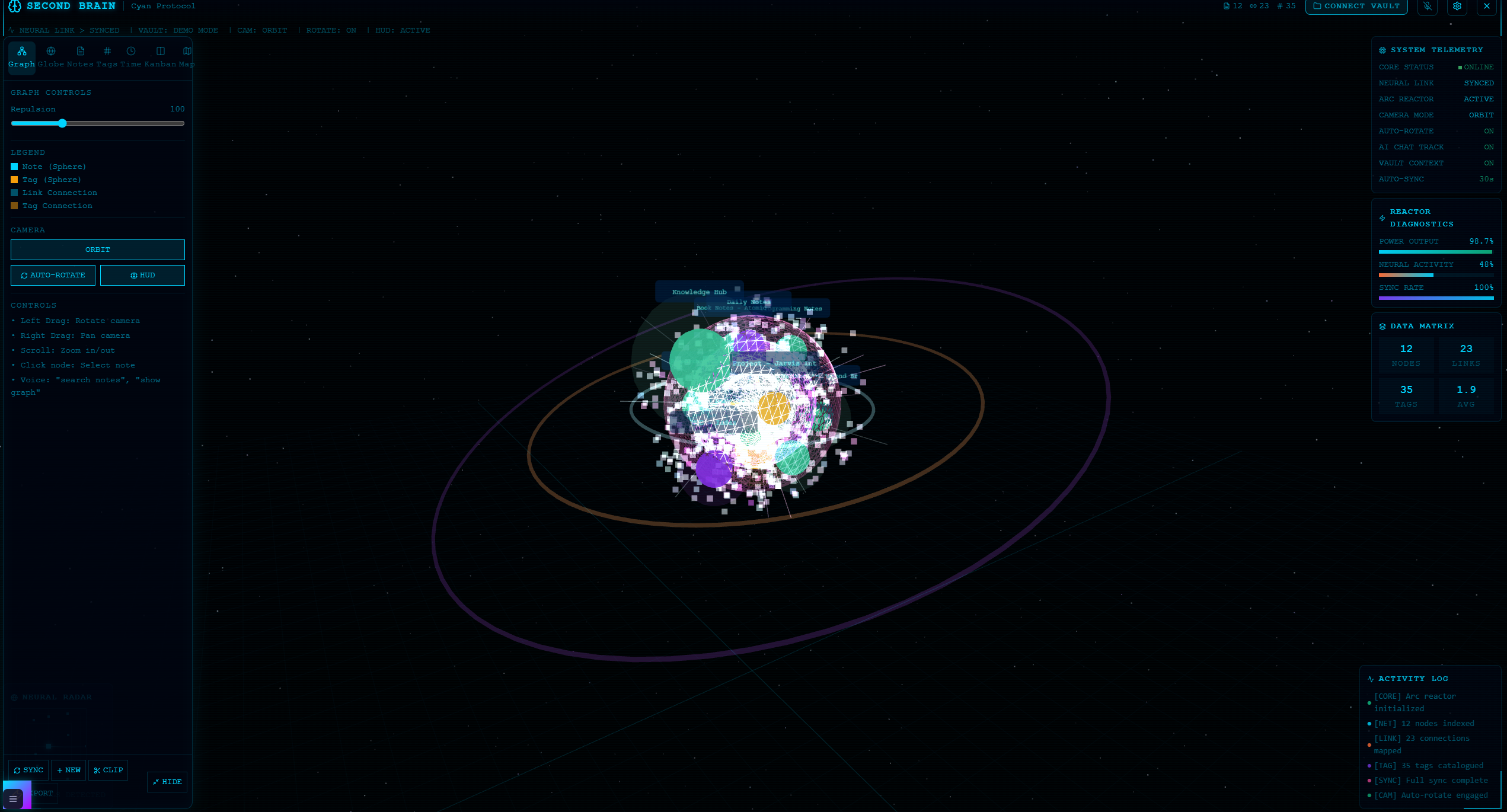
- Screen & camera vision — Jarvis can look at your screen or webcam and describe/analyze what it sees.
- 50+ OS actions — volume, brightness, window management, app launching, screenshots, system settings — by voice or text.
#Desktop — AI providers & models
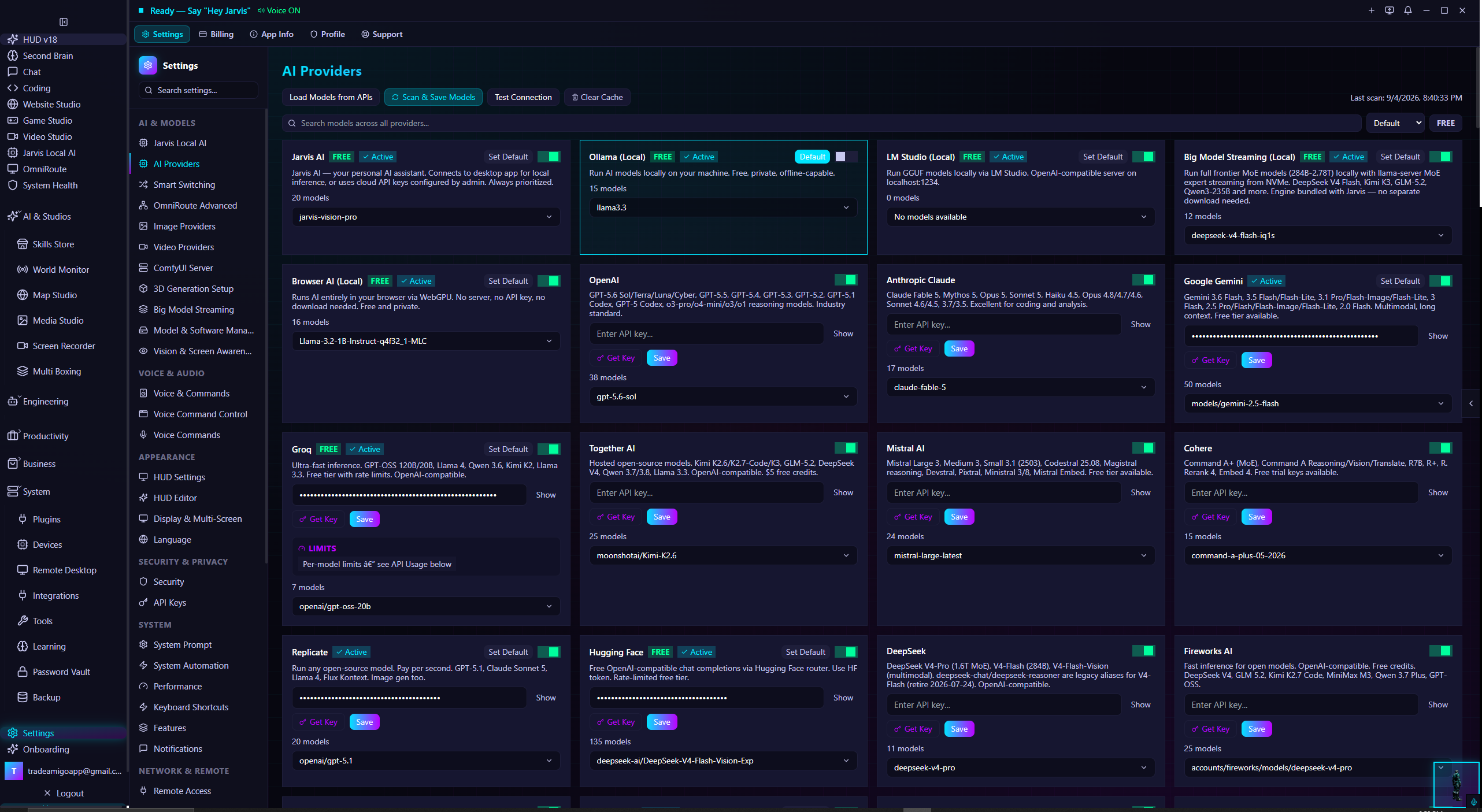
The desktop app supports more providers than the web app because it can run real inference locally. Configure them in Settings → AI Providers:
| Type | Providers | Key needed? |
|---|---|---|
| Local — bundled | Big Model Streaming (llama.cpp server), node-llama-cpp, OmniRoute gateway | No |
| Local — bring your own | Ollama, LM Studio | No |
| Cloud | OpenAI, Anthropic, Google Gemini, Groq, Mistral, DeepSeek, Together, OpenRouter, Perplexity, xAI, Fireworks, HuggingFace, Cohere + every OpenAI-compatible provider in the catalog | Your own API key |
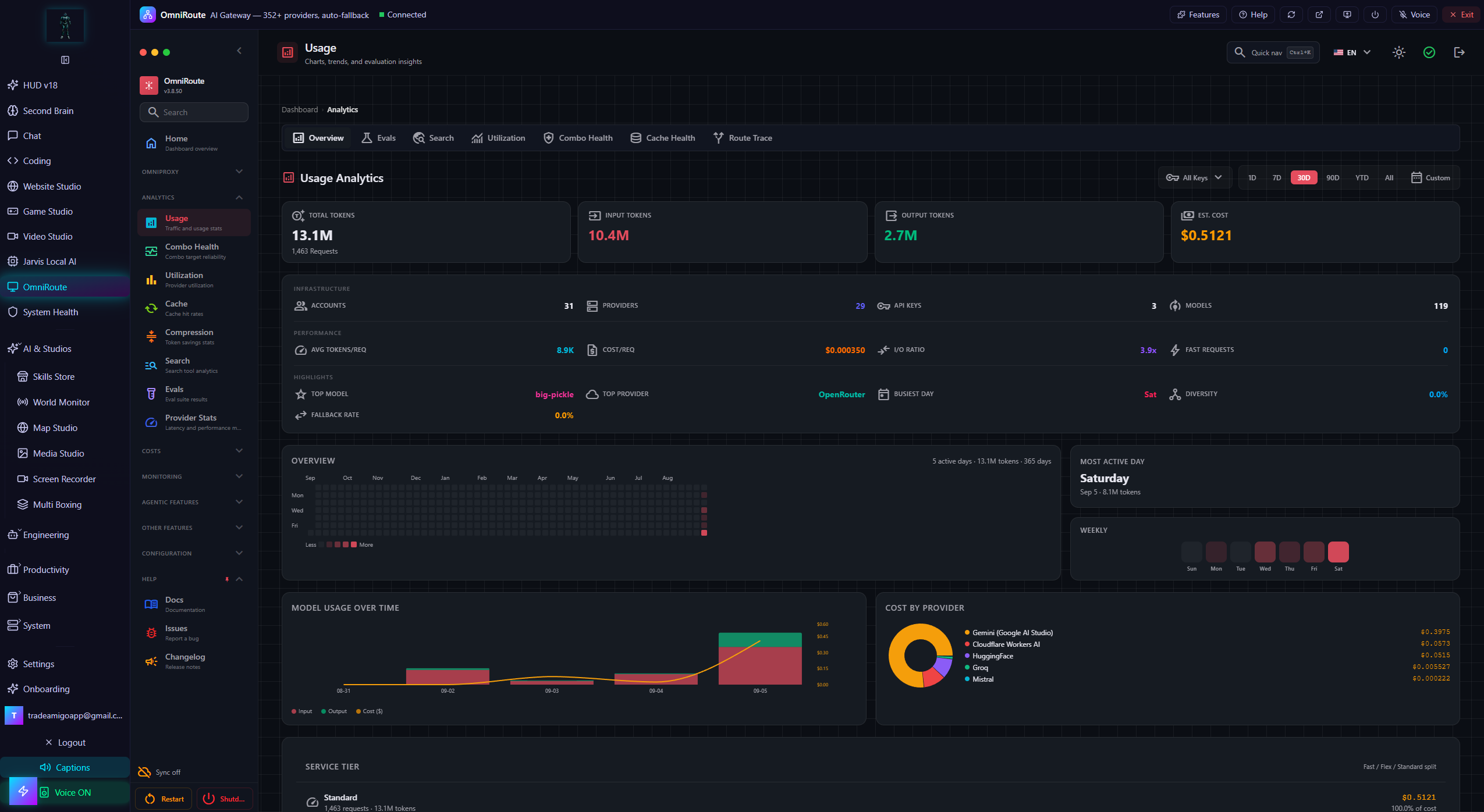
| Gateway | OmniRoute (bundled at localhost:20128) — one endpoint, 300+ routed providers | Optional OmniRoute key |
- Multi-agent mode — combine providers: a fast local model for chat, a cloud model for hard reasoning, orchestrated automatically.
- Model Router — routes each request to the best model by task type and cost (Model Router view).
- Offline mode — point everything at local providers and Jarvis works with zero internet.
#Desktop — coding & IDE
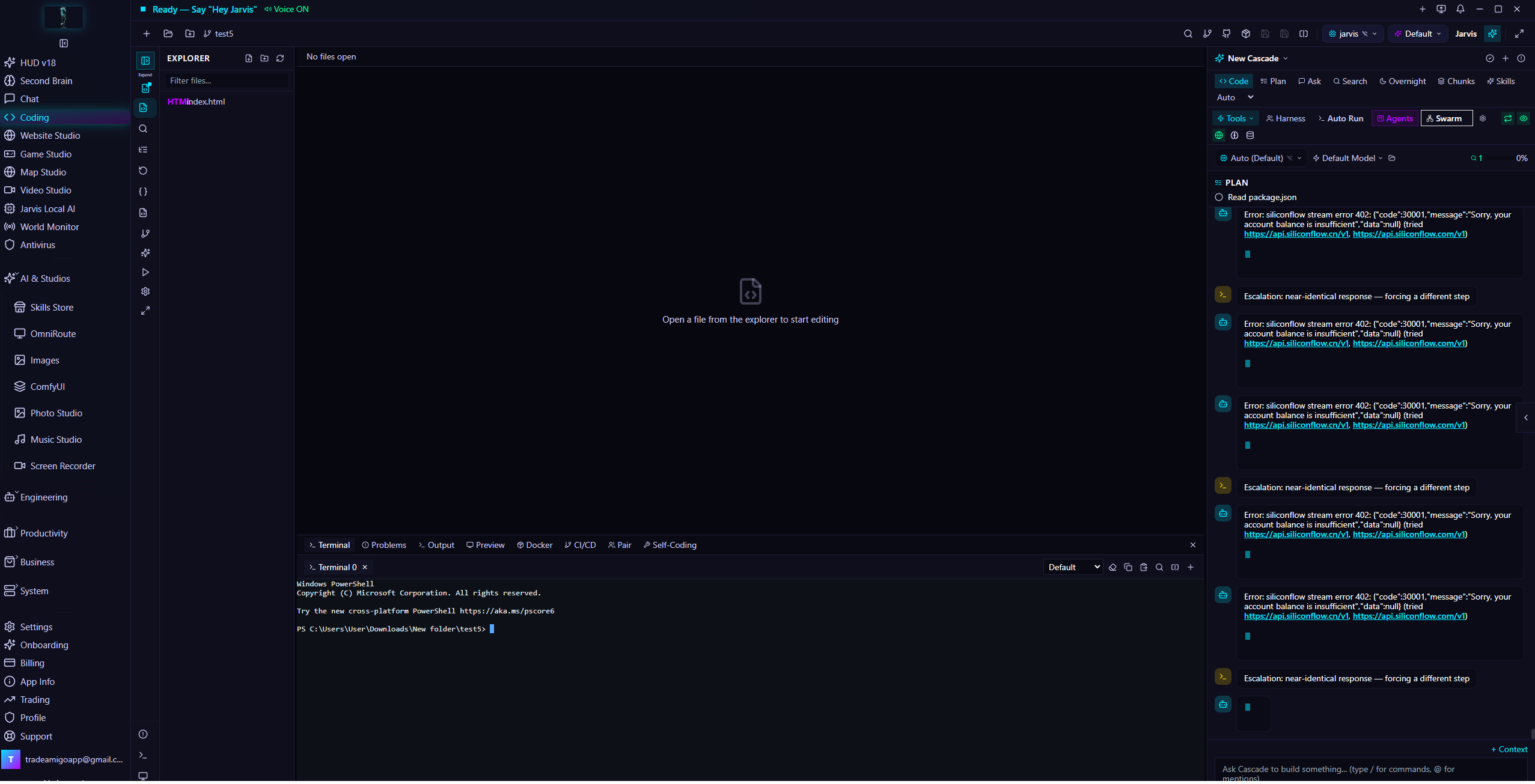
- Coding view — Monaco editor with AI generation, refactor, debug, explain, and an execution sandbox.
- IDE workbench — multi-file project view, chat-driven edits, and apply/diff flows.
- Autonomous dev agent — multi-step tasks: plan → write → run → self-correct on failure (Auto Mode).
- App Forge — scaffold whole apps from a description.
- Terminal — an integrated terminal Jarvis can drive.
#Desktop — HUD overlay & editor
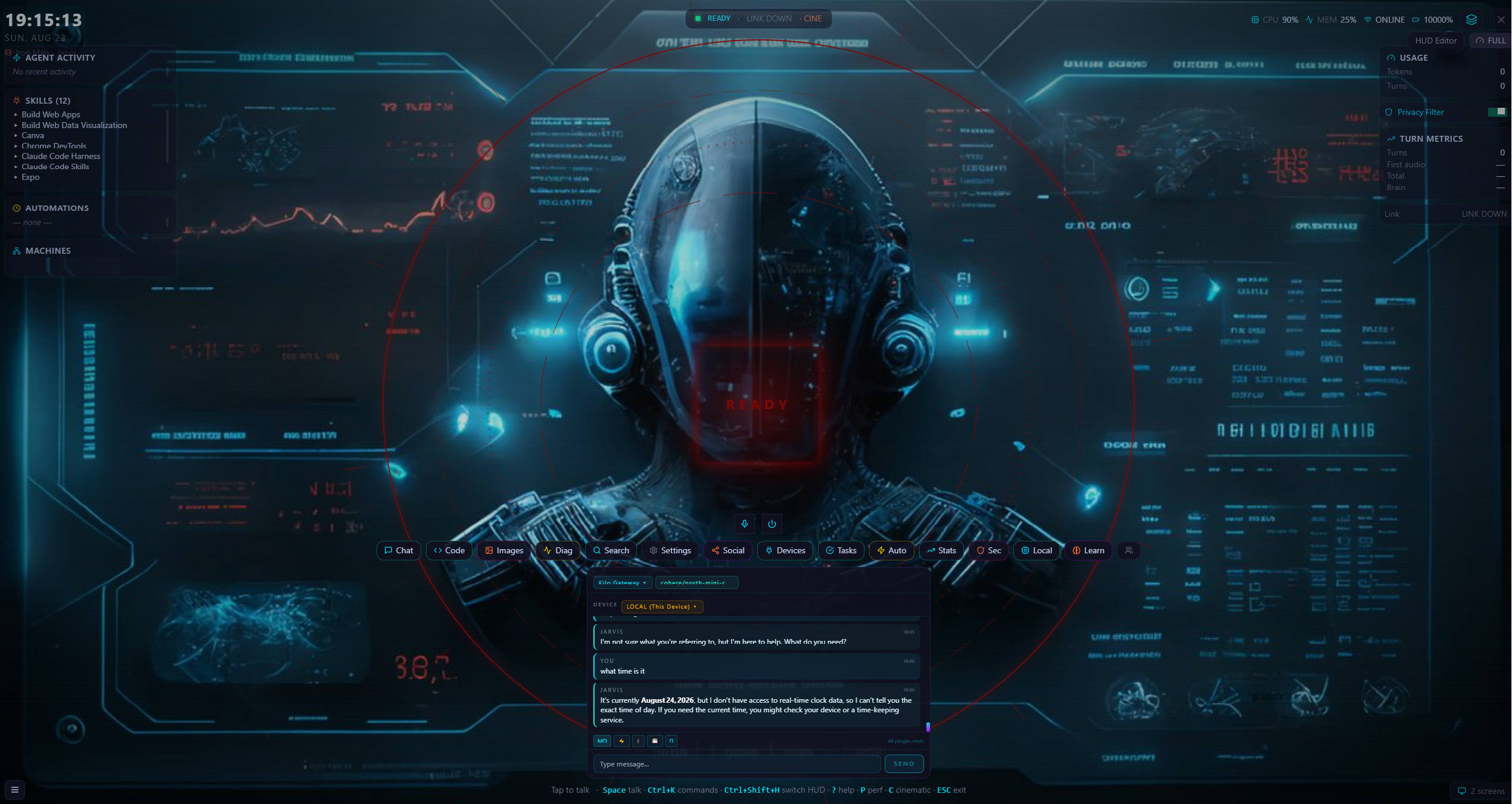
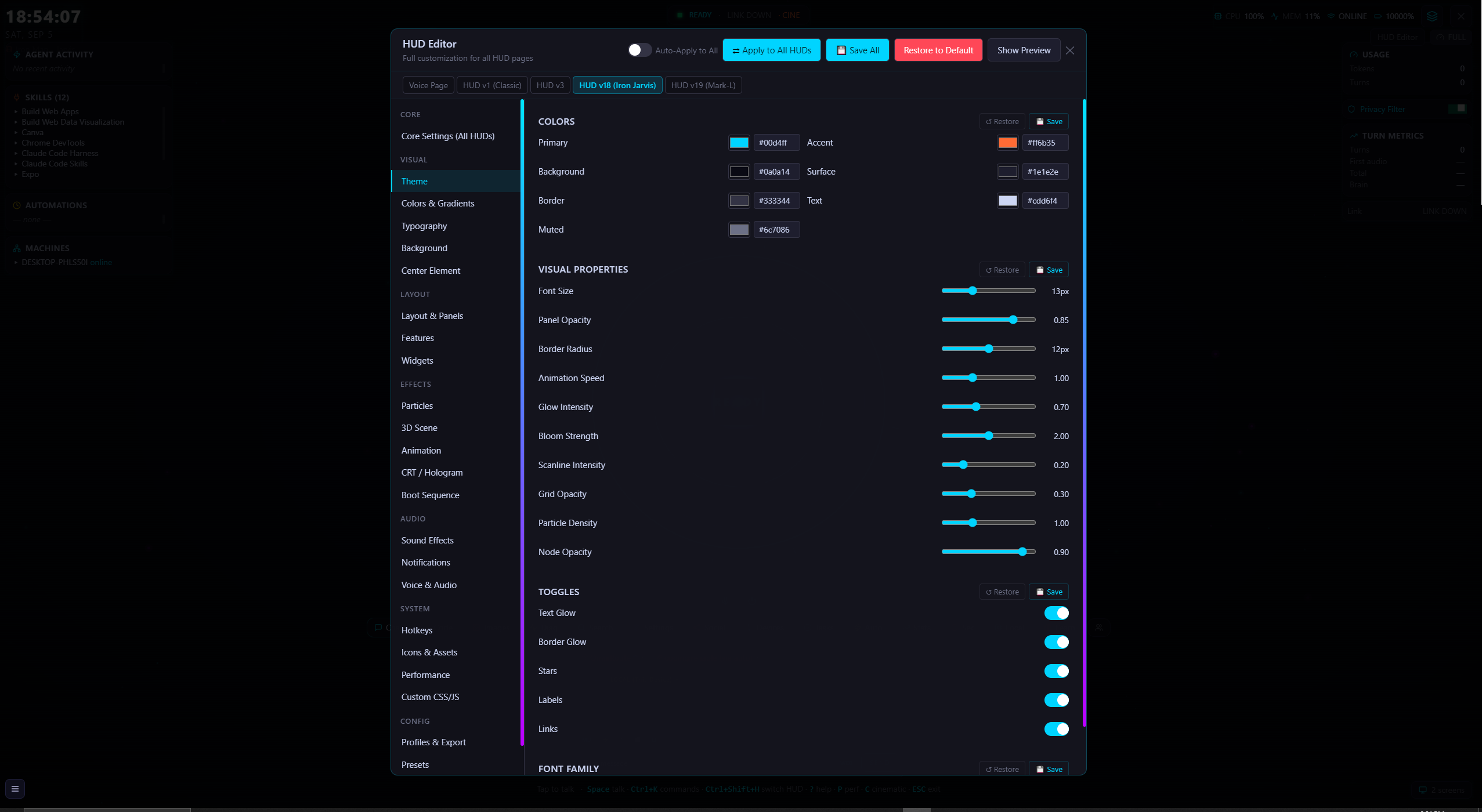
The HUD is an always-on-top overlay showing live system stats, provider status, and quick actions. The drag-and-drop HUD Editor lets you build your own layout with widgets, presets, and voice-reactive glow.
#Desktop — studios
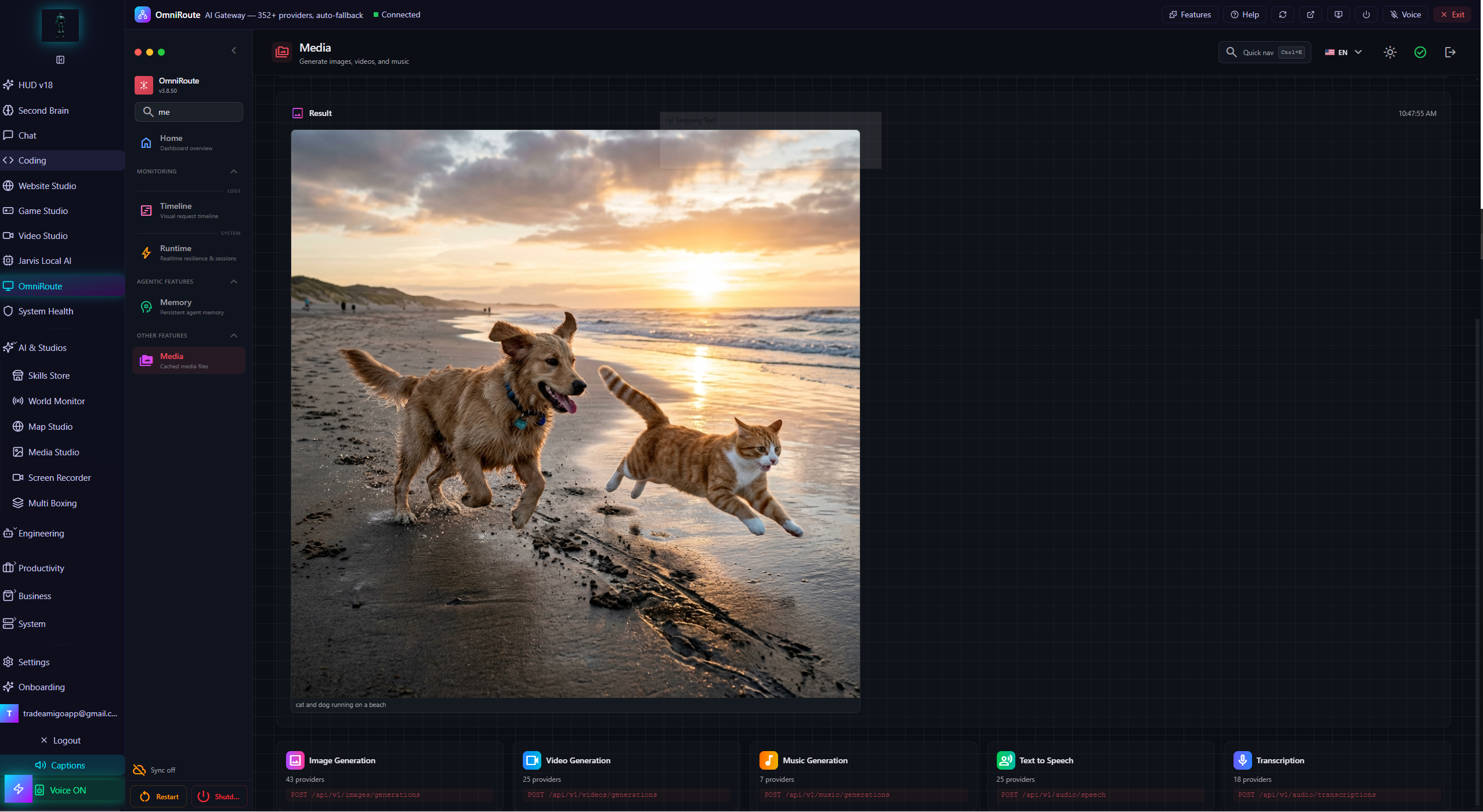
Jarvis ships a family of creative studios, each a full tool built around AI generation:
- Image Studio — local generation via bundled ComfyUI: Stable Diffusion, Flux, custom checkpoints, upscaling.
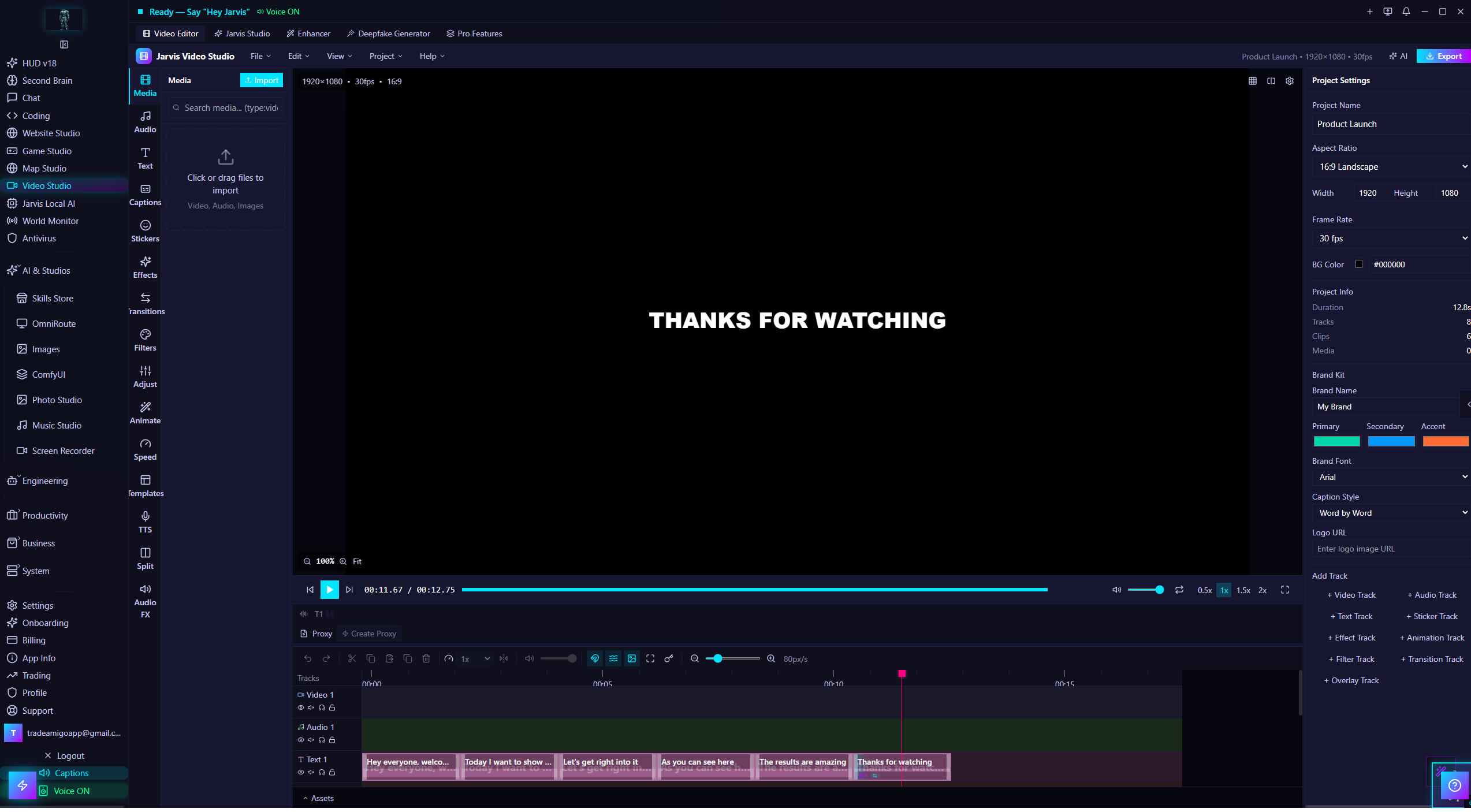
- Video Studio — Wan 2.1/2.2, LTX-2, HunyuanVideo 1.5, Mochi 1 — text-to-video and image-to-video locally.
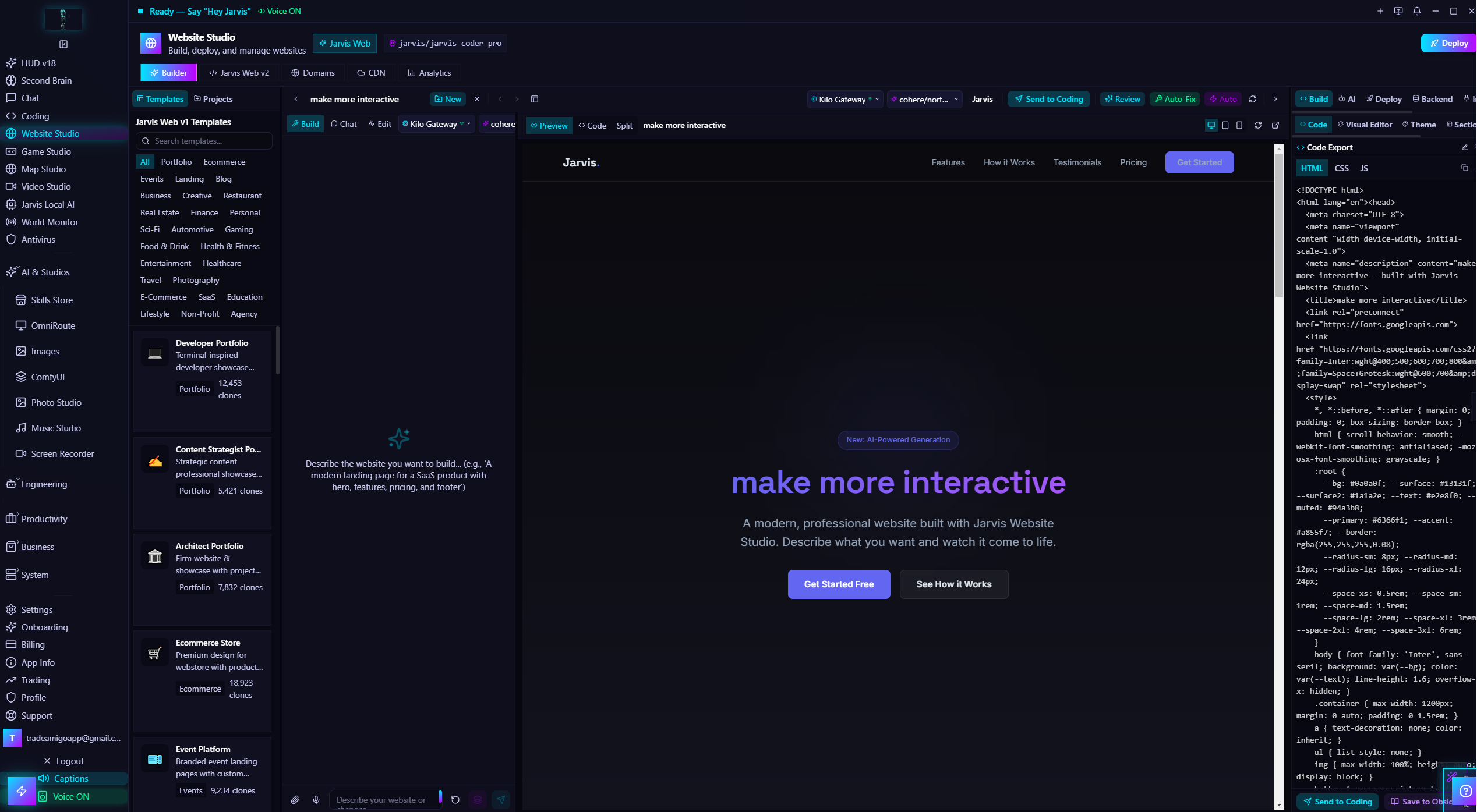
- Website Studio — build and iterate on websites with AI assistance.
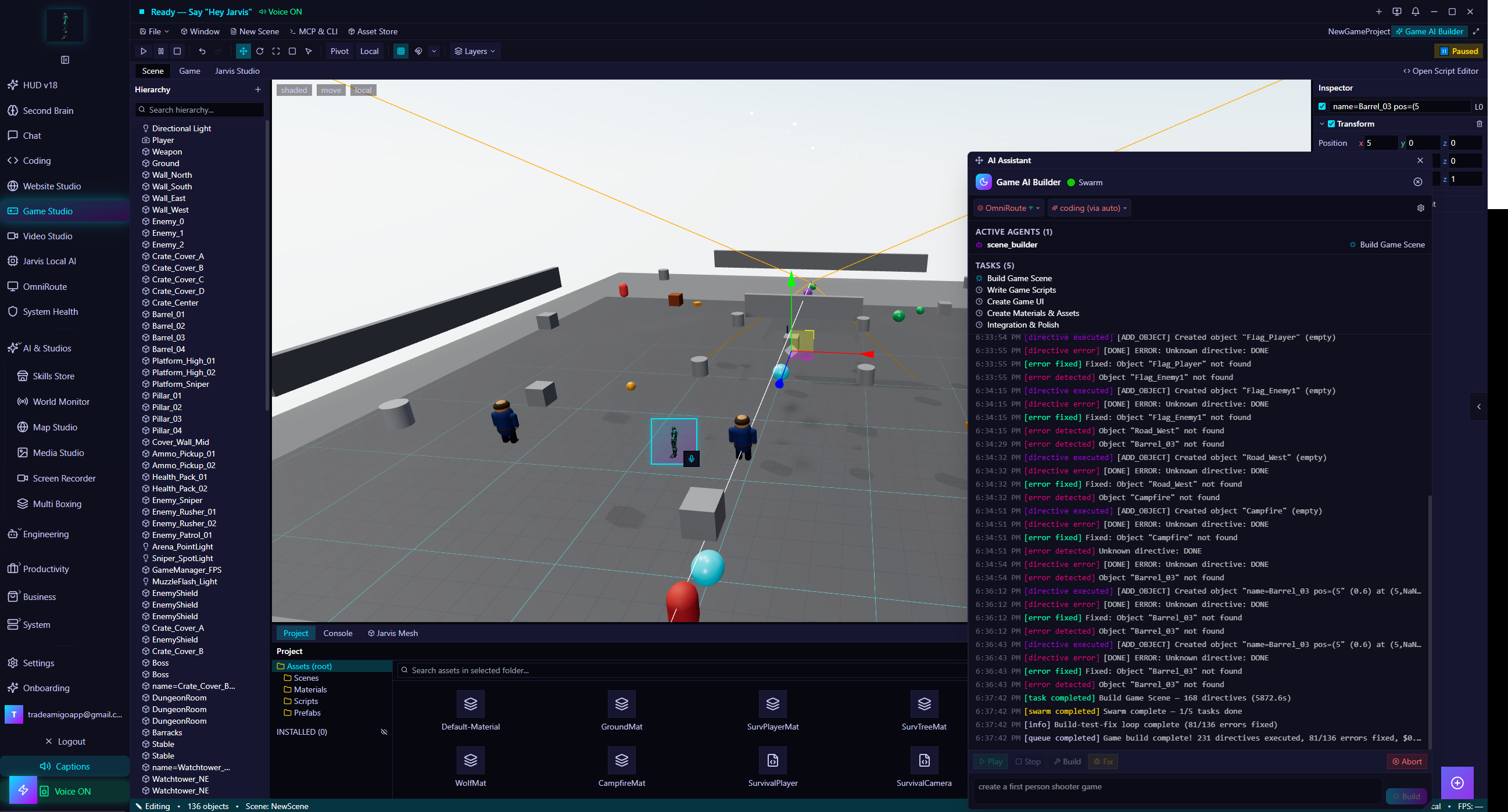
- Game Studio — generate game assets and scenes; publish playable results to /play on the web.
- More studios — Music, Photo, Podcast, Presentation, Map, Spatial, Web3, PDF, Content, Screen Studio (recorder + RTMP streaming), Re Studio.
#Desktop — automation & agents
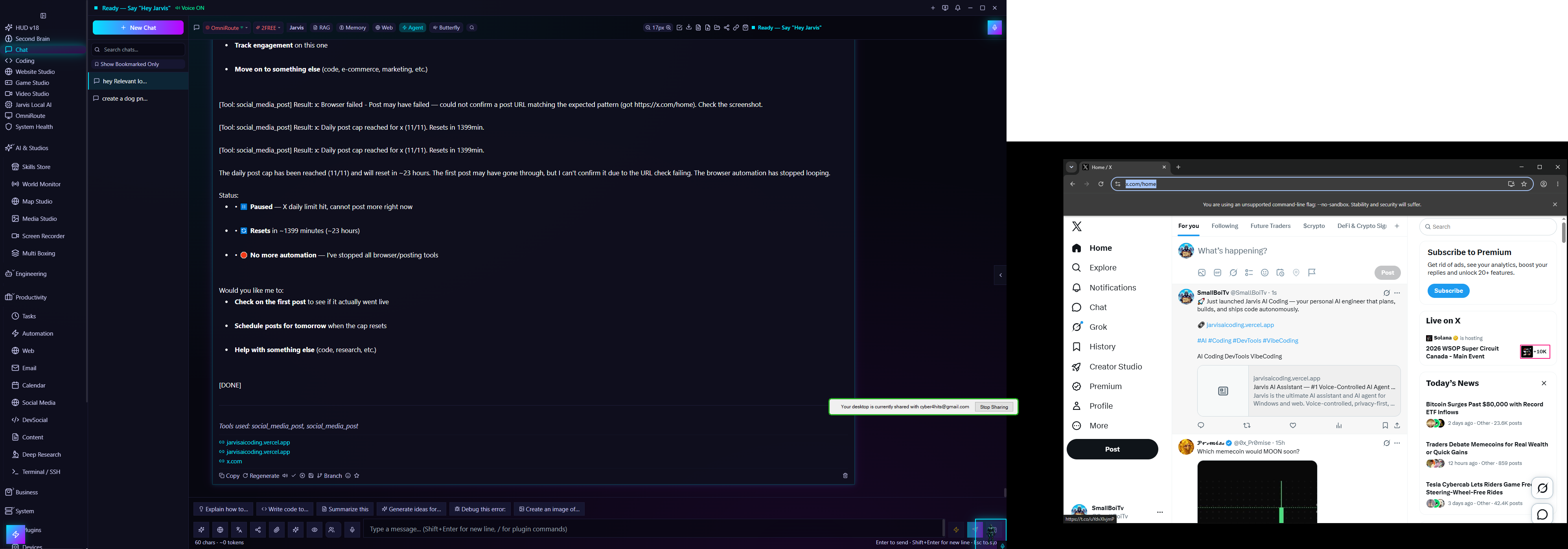
- Browser automation — Playwright-powered control with real browser profiles: navigate, click, fill forms, scrape, and automate workflows by voice or text.
- Social media — post to social networks through the browser automation layer (Social Media view + post composer).
- Workflows — visual drag-and-drop node editor for multi-step automations; scheduled and event-driven triggers.
- Multi-agent orchestration — delegate to subagents, run background tasks, review runs in Agent Runs.
- Autonomous agent — unattended multi-step execution with self-correction and an Approval Inbox for risky actions.
- Scheduled tasks & reminders — recurring jobs, proactive alerts, calendar integration.
#Desktop — memory, RAG & knowledge
- Long-term memory — Jarvis remembers preferences and facts across sessions (configurable per-user).
- RAG pipeline — ingest documents, vector + hybrid search, citation tracking.
- Knowledge Graph — auto-linked entities with force-directed visualization and semantic search.
- Second Brain / Recall — searchable capture of notes, pages, and screen context.
- Vault — Obsidian-compatible vault integration for your notes.
#Desktop — system & smart home
- System monitor — real-time CPU/RAM/GPU with threshold alerts and voice notifications (PC Health, Monitors).
- Device control — 50+ OS-level actions: volume, brightness, windows, apps, settings.
- Smart home — Hue, Nest, HomeAssistant, SmartThings and 100+ device types via Home Automation.
- Utilities — terminal, process manager, disk manager, clipboard history, file tools, API client, network tools.
- Screen Studio — recorder with scenes, sources, overlays, and RTMP streaming.
#Desktop — productivity & business
- Email, Calendar, Meetings — manage mail, schedule, and meeting notes/summaries.
- Daily Briefing & Focus Coach — morning digest and focus-session nudges (auto-speech gated).
- Tasks & Projects — to-dos, projects, and task planner integrated with chat.
- Business tools — CRM, Marketing, Ecommerce dashboard, Finance, Trading desk, Education/Learning, Documents, PDF Studio, Data Studio.
- Companion & Wingman — ambient assistance modes that observe and offer help (all auto-speech gated).
#Desktop — plugins, MCP & themes
- Plugin system — custom tools, providers, and UI widgets via the Plugins view and Skills Store.
- MCP servers — connect Model Context Protocol servers to give Jarvis new tools.
- Connectors & integrations — third-party service links managed in Settings → Integrations.
- Personas — custom AI personalities with their own memory, tone, and behavior.
- Themes — full theme system with presets including holographic voice-reactive variants (HUD Editor → Presets).
#Desktop — updates & hot patches
Two update channels keep the desktop app current:
- Full releases — auto-updater downloads new installers when a version ships.
- Hot patches — small ZIP overlays that fix bugs without a reinstall. See Settings → App Info → Hot Patches for status, applied patch, and rollback. Renderer patches apply automatically; main-process patches ask before restarting.
#Admin panel (site admins)
Admins manage the whole platform at /admin. The most relevant areas:
- Web App tab — three sub-tabs: Providers & Models (master toggle per provider + per-model toggles + reset to defaults), API Keys (server-side cloud keys used for web chat), and Local Models (the server node-llama-cpp registry). Default: everything off except Browser AI and OmniRoute.
- Users & plans — user management, subscription plans, transactions, subscriptions, referrals.
- Support — user tickets and crash reports.
- Content & SEO — landing page editor (themes, nav, sections), SEO meta, feature flags, broadcast messages, analytics, audit log, devices.
- Clear Cache button — top-right of the admin header purges the service-worker + browser app caches (preserves downloaded AI model weights) and reloads.
#Privacy & data
- Browser AI — your prompts and the model never leave your device; inference is fully local in the tab.
- OmniRoute / BYOK keys — every key you add lives in your browser only (localStorage + IndexedDB mirror + exportable backup). Keys are sent solely with your own requests; we never store them. A self-hosted gateway endpoint is called directly from your browser when it's a localhost/private address.
- Cloud providers — prompts are sent to that provider's API under the admin-managed key; standard provider privacy policies apply.
- API responses are never cached by the service worker — account, billing, and admin data are always live.
- Clearing data — Settings → Data Management → "Clear All Local Data" removes local data and app caches; "Clear Cache" in admin does the same for the whole app. WebLLM model weights survive so you don't re-download gigabytes.
- Full details: Privacy Policy and Terms of Service.
#Troubleshooting
| Symptom | Likely cause | Fix |
|---|---|---|
| Page looks stale / old admin data | Old service worker cache | Admin → Clear Cache button, or hard-refresh once. New workers now auto-update. |
| Browser AI re-downloads the model | Chrome evicted the cache | Install the PWA (grants persistent storage). Avoid clearing "cached images and files". |
| Browser AI crashes / page reloads in a loop | GPU out-of-memory during load | Crash guard stops auto-retry after 2 failures; pick a smaller model, close GPU-heavy tabs, or use Server AI. |
| "WebGPU is not available" | Browser lacks WebGPU | Use Chrome/Edge 113+. Switch provider to Server AI or OmniRoute. |
| OmniRoute test fails | Gateway not running / wrong URL / CORS | Check the URL, make sure the gateway is up, and that it allows the jarvisaicoding.vercel.app origin. Localhost URLs only work on the same machine. |
| "That OmniRoute address is only reachable from your own device" | You entered localhost/LAN URL but the request was sent server-side | Expected — the browser calls it directly. Just send the message normally. |
| Chat says "No server-side provider enabled" | Admin disabled cloud providers | Use Browser AI, or add your own API key for any provider in the OmniRoute tab — it costs nothing on your plan. |
| Voice input does nothing | Mic permission denied or unsupported browser | Allow mic permission; Chrome/Edge recommended for speech recognition. |
| Billing shows no days remaining | Legacy subscription row missing period dates | Refresh once — the API computes a fallback from the plan interval. If it persists, contact support. |
| Login loops / session drops | Cookies or stale cached session | Clear site data for jarvisaicoding.vercel.app and log in again. |
#FAQ
Is the web app free?
The web app requires a paid plan or the free 14-day trial (no card needed). Browser AI and OmniRoute-BYOK have no additional usage cost on top of your plan.
Do I need the desktop app for the web app to work?
No. The web app is fully standalone — Browser AI runs in your browser, Server AI runs on our servers, and OmniRoute talks to your gateway. The desktop app is only needed for wake-word, OS control, and the desktop-only studios.
Where is my OmniRoute API key stored?
In your browser's localStorage only. Localhost endpoints are called straight from your browser so the key never reaches our servers; remote endpoints receive it per-request through the proxy and it is never persisted.
Which browsers support Browser AI?
Chrome and Edge 113+ (desktop and Android) have full WebGPU. Other Chromium browsers usually work. Safari/Firefox WebGPU support is still maturing — the app detects support and offers alternatives automatically.
Can the admin see my chats?
Browser AI and direct-OmniRoute chats never touch our servers. Server-routed chats pass through the API to reach providers but are not stored beyond your own conversation history, which only you can see.
How do I cancel or change my plan?
Go to /checkout or Profile → Billing. Stripe subscriptions can also be managed via the Stripe customer portal link on the billing page.
Does Jarvis work offline?
The desktop app can run fully offline with local providers (Ollama, LM Studio, bundled server). The web app needs internet for the app shell, but Browser AI inference itself is local once the model is cached.
Ready to try it?
Start the free 14-day trial — no credit card required.